

If you are new to the podcasting world and are wanting to give editing a try, it can be difficult to know where to start. With lots of information readily available, sifting through heaps of literature and technical jargon can be both time consuming and confusing. In this simple guide, we will break down the steps to make this process a whole lot easier. It is worth noting however, that editing requires a significant amount of time and effort, therefore it may be worth considering using a podcast studio such as TAEPodcast to assist with this process.
Download Editing Software
Choosing the right editing software can be tricky. With plenty to choose from, it can be hard to establish the right one for you. However, for the purposes of this guide, and because it is our personal favourite here at TAEPodcast, we will be discussing the use of CapCut.

Import Your Files
Now it is time to import your files. Simply create a new project and you will be taken to this screen.
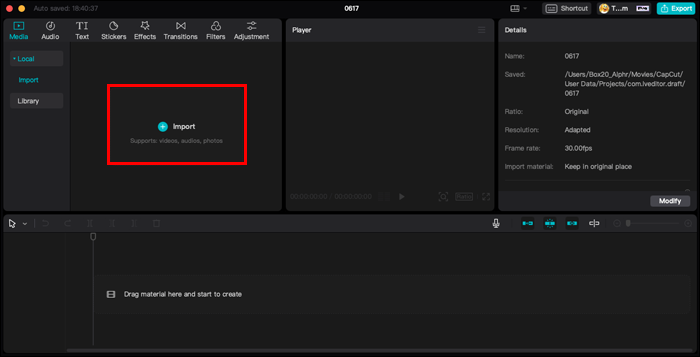
Click the import button highlighted in the above photo. This will then open up your files. Select all the files you wish to add to your podcast video, including music, sound effects, and audio files.
Now drag your video and audio files onto the track so that they are ready to start editing.

You want to be sure to place the video file with the main camera angle, above the video file of the side camera angle as this will make the editing process much easier. The file on the top track is the one that will be displayed on the screen when watching the video. The ones below will be hidden until the top track is split and cut.
Sync The Video and Audio Files
The quickest and easiest way to do this is to hold down the command button on your keyboard. Then, simultaneously, use the right hand side of the mouse to click on to each file you wish to sync up. Once each file is selected, hold down the control button the keyboard and right click again. This will bring up a list of options to choose from. On this list will be “sync video and audio” as pictured below.

Now Capcut will automatically sync your files together. Once this is done it is time to start the editing process.
Time To Edit
Changing Camera Angles
To do this you must split and cut your top video file in order to reveal the camera angle on the track below. First you will need to select the top video ensuring the white line is lined up with exactly where you want to split the video. Then select the split option in the top left of the track as shown below.

Now you will have split the file into two. You can now drag the file either right or left using your mouse to reveal the track below, exposing the part of the second camera angle video you want to see. Do this as many times as you wish throughout the video to change the camera angles. At TAEPodcast, we recommend changing the camera angle frequently to ensure the video doesn’t become visually boring.

Removing Mistakes
For this you will need to select all files which the mistake is on. This is usually all video files and the main audio file. Select them by holding the command button on the keyboard and right clicking each relevant file. Once they all selected, make sure the white line is positioned exactly when you want to split the files, for example right before the mistake happens. Your files should all then look like this:

Then repeat the same process watching the video until the mistake is over and stop the white line where you wish to split the video again. Select all the files and split them.

Now you will have a section of files separate to all the files you wish to keep. Simply select the section of the files you wish to delete and press the delete key on your keyboard.


You will then be left with a gap in your files. Simply select and drag all the files from the right and connect them back with the files on the left. To make this edit less noticeable use camera angle changes to hide the cut. This ensures the video runs smoothly and is easier to watch for your audience.
Oops! You Deleted The Wrong Section – How To Undo This
If you accidentally made a mistake during the editing process, simply hold your cursor at the top left of the screen to expose the options including file, edit, help, etc. Press on edit and click undo. This will undo your last move and you can repeat this until the mistake is undone and you can start fresh.

Export Your Podcast Video
Once you are happy with what you have produced, it is time to export your file. Use the export button in the top right of the screen.

You will then be taken to this screen.

Change the Name to what you wish the file to be saved as and make sure the video resolution is set to 4K. This makes sure the video is exported with great quality.
Grab A Cuppa And Watch Your Episode
Now the hard work is done. Sit back, relax and watch your brand new podcast episode!
We hope you found this guide helpful. Admittedly these are just the very basics to get you started. If you want more advice or want to book in for a podcast session please do get in touch by contacting [email protected].
For more information
For more information please visit our website. We would love to hear from you.
Capcut is available to download onto phones so you definitely could give it a go. However, we would recommend using either a laptop or a computer to make the process easier.
Absolutely. Here at TAEPodcast we offer an editing service to assist with the production of your podcast.
Yes, editing is super important if you are wanting to grow an audience. Editing ensures mistakes, pauses and unnecessary content is removed from the finalised episode making the podcast much more enjoyable for consumers.
This depends on how long the episode is and how many mistakes were made. Editing can take anywhere from a couple of hours to a couple of days.

